During the 90's, Microsoft faced controversy and even legal action for bundling Internet Explorer with Windows. They infamously integrated Internet Explorer very tightly with the system in Windows 98, which made it essentially impossible to uninstall. Even in Windows 11, which does not include Internet Explorer, there are still lots of IE components still in the system due to being required for certain functionality.
Despite this, in 2006 Microsoft did release a Windows version which allowed for Internet Explorer to not be installed. Windows Fundamentals for Legacy PCs (or WinFLP) is a slimmed down version of Windows XP intended for enterprise environments. It allowed older PCs which couldn't run regular Windows XP to still use a Windows XP based system. WinFLP notably allowed for certain components to be excluded from the installation, including Internet Explorer. This is despite Microsoft claiming IE to be integral to Windows, and despite many Windows features relying on Internet Explorer being present to function. So, what happens upon installing WinFLP without IE (or any other optional components)?
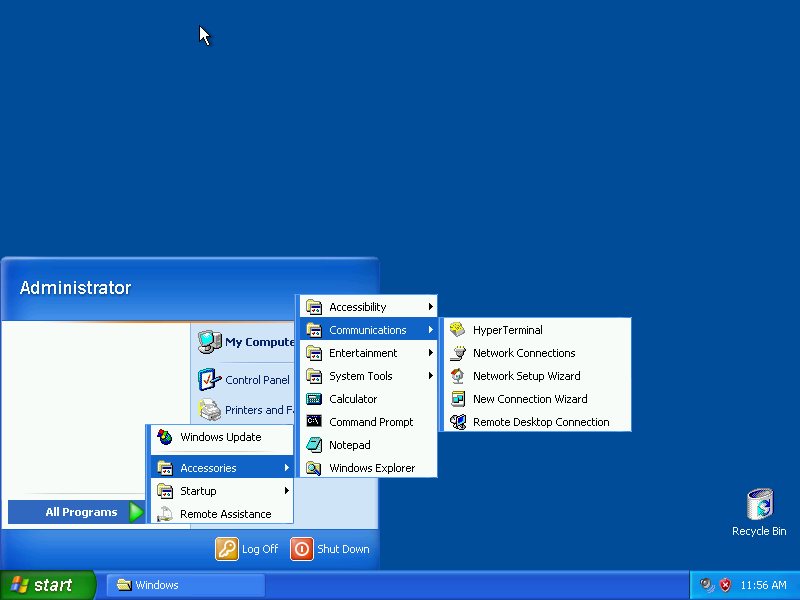
We get a very barren Start menu without Internet Explorer or many other common Windows programs. Command Prompt, Notepad, and Calculator are still here, but not Paint, any of the games, or Media Player. Most of the accessibility features appear to still be here, as well as communication programs such as HyperTerminal and Remote Desktop Connection, meaning you could still use this as a thin client.
As expected, trying to run Internet Explorer results in it not being found:
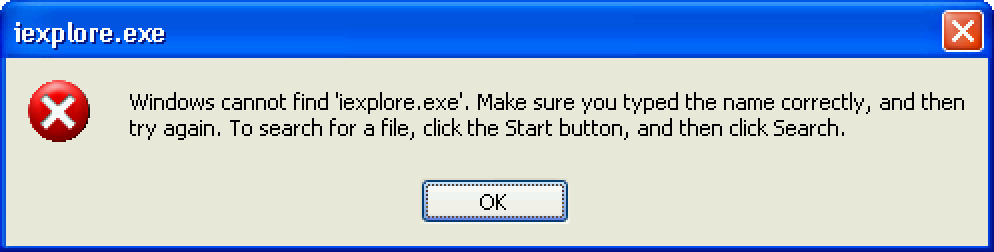
Interestingly, it still suggests pressing "Search" on the Start menu despite the button being removed. Searching does still exist in Explorer, but it uses the older Windows 2000 style search UI instead of the Windows XP style search UI with Rover.
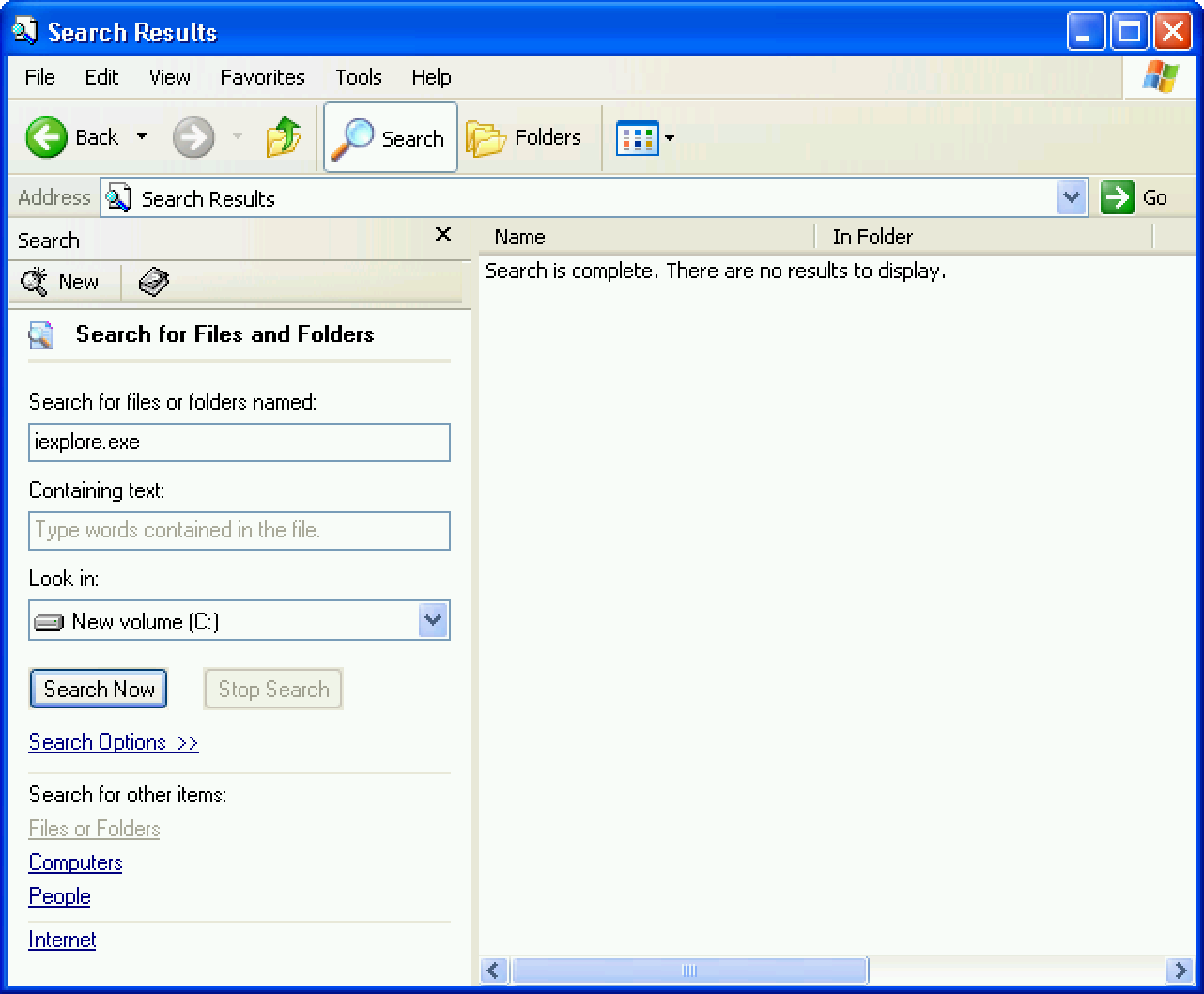
But wait, at the bottom of the search UI, there's a link that says "internet", what happens if we click on that? And suddenly, the facade begins to unravel:
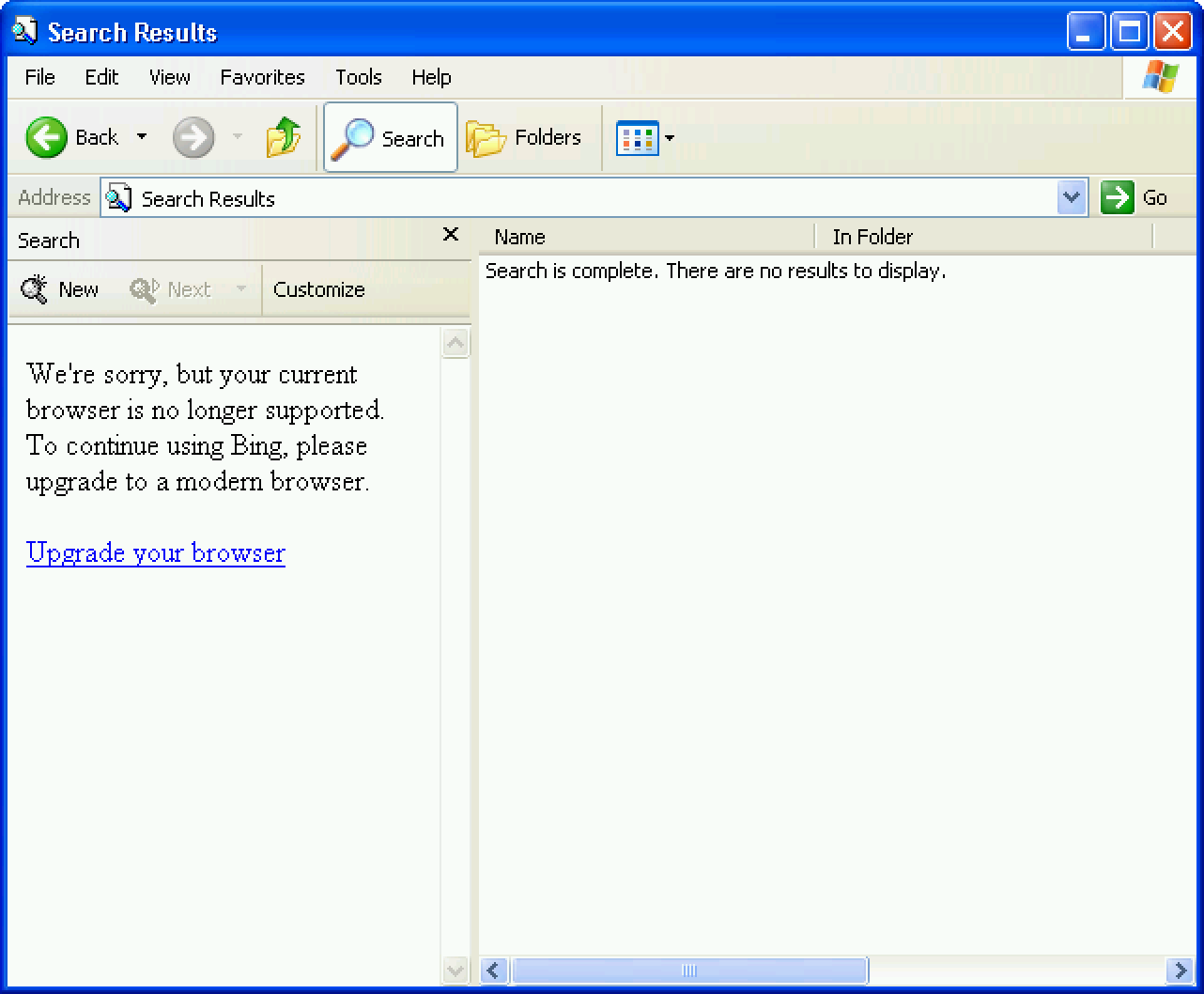
Yes, that's a website showing up in the search pane, specifically Bing. Since Internet Explorer is so old, Bing doesn't support it anymore. Anyways, that's definitive proof that IE is still on the system. You can click on the link, right click and view the HTML properties, etc.
If you were to go back to the desktop folder, you'd see something else very interesting:
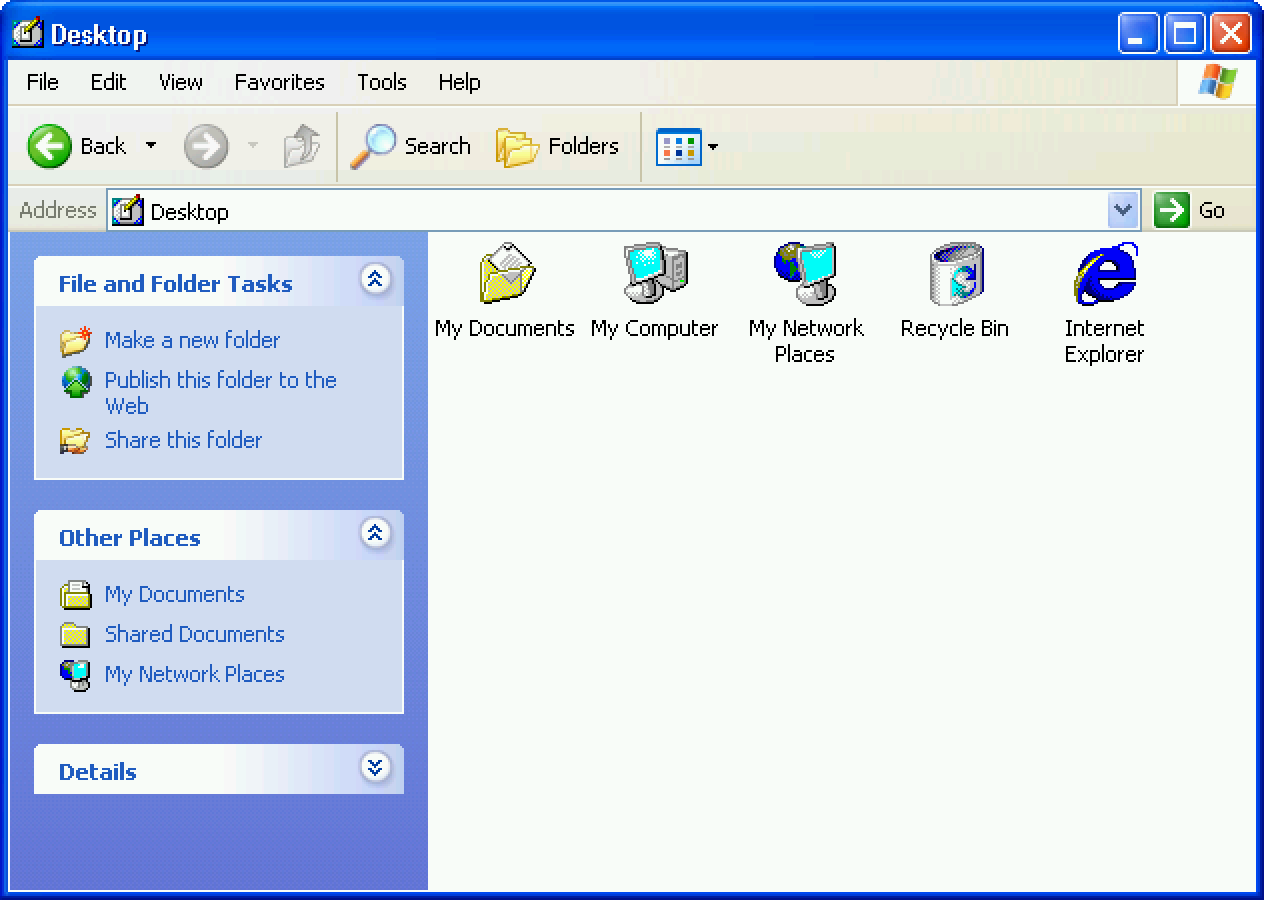
For some reason, Internet Explorer still has an icon here. This isn't an actual shortcut, it's one of the system shortcuts that you can set to appear on the desktop through display settings. Weirdly enough, it doesn't appear on the actual desktop. If you drag it to the recycle bin, the icon will go away from the desktop folder. You can go back into the display settings and turn it back on, which will cause it to appear on the actual desktop. I can only presume this is some sort of oversight by Microsoft?
The icon doesn't actually do anything. It opens this "Open with" window, but if you try to open it, you just get an access denied error. The file type displayed is blank as well.
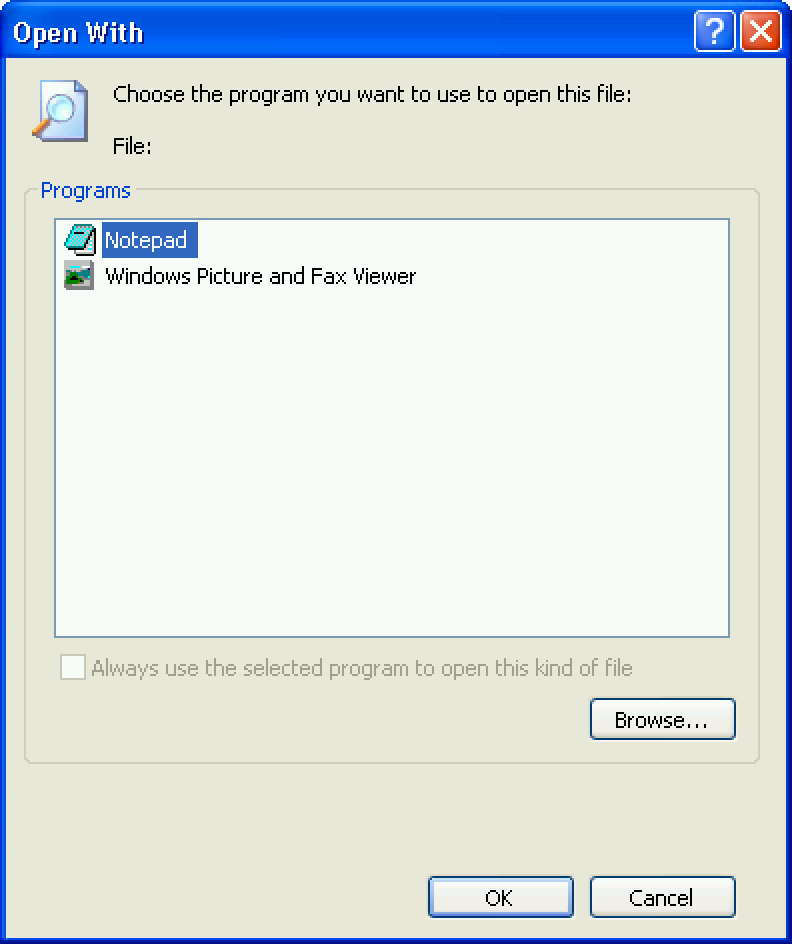
Additionally, if you right click the icon and click "Properties", nothing will happen. I'm guessing it's probably trying to open up Internet Options and silently failing due to it being removed as well.
So, are there any other places Microsoft forgot to disable Internet Explorer from running? Yes, many such cases.
If you click on "Help", then "Is this copy of Windows legal?", then you'll be sent to a website too advanced for IE to comprehend. Before that, it'll let you know the page will be viewed over a secure connection. Clicking "More info" causes another break, since the IE help file isn't there.
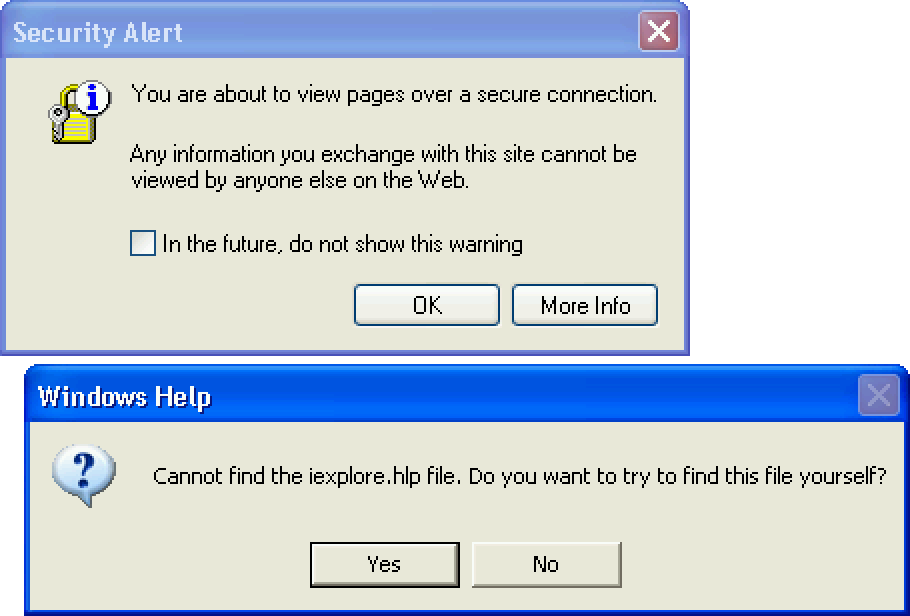
Trying to type a URL into a run box gives a proper "Application not found" error:

However, there's one last exploit that completely breaks the illusion. There's a somewhat obscure feature where you can type in a URL into the location bar in explorer, which normally causes it to turn into an IE window. When we do it here... it also turns into a completely normal IE window.
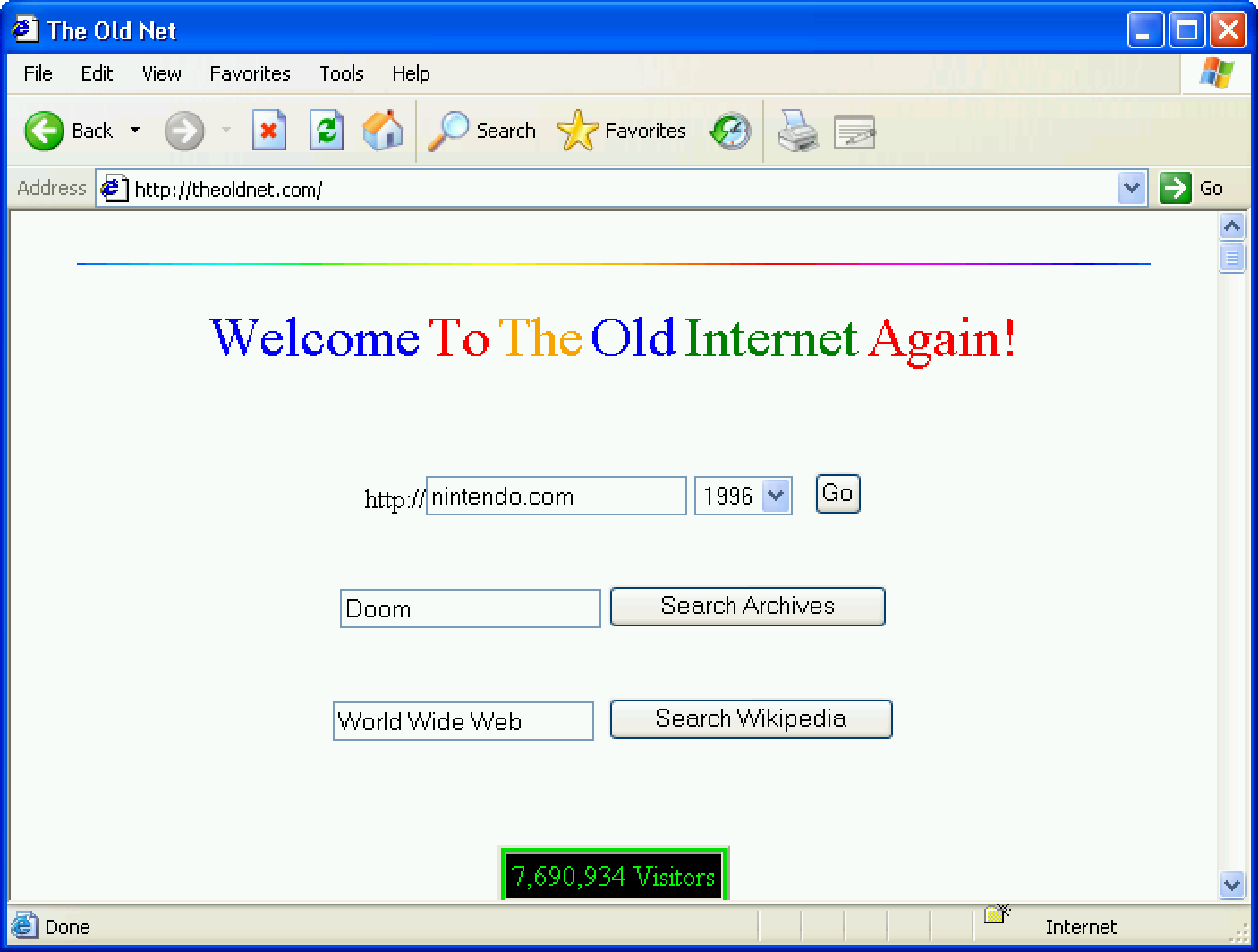
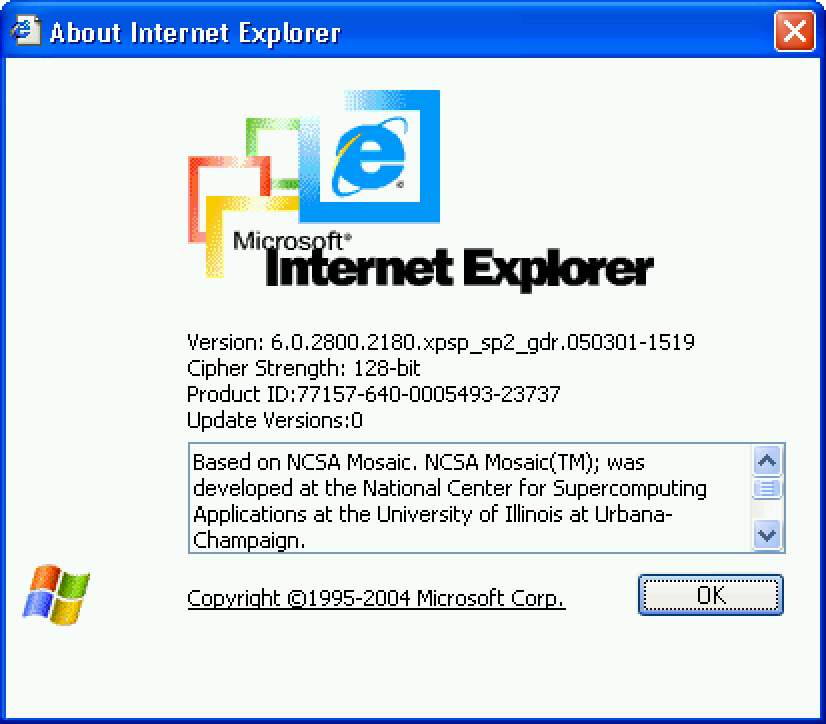
Most things work as expected. Here's the about window, showing that this is Internet Explorer 6:
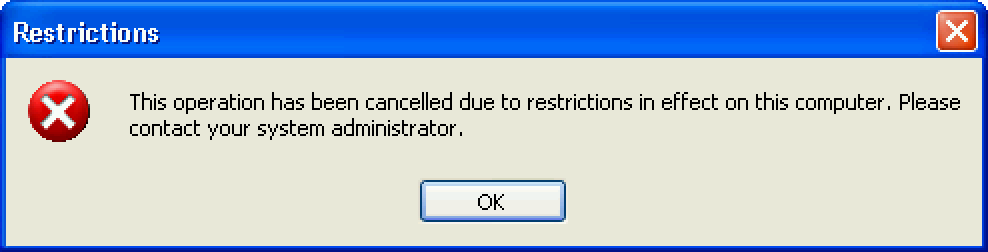
Trying to open Internet Options from IE gives us this cool error:
Everything else from the Tools dropdown does nothing, except for Windows Update, which tries to go to the Windows Update website, which has long since been disabled. Instead you just get a 403 forbidden error. Favorites work, and there's even a list of pre-added favorites for us, all of which point to dead redirects to various websites like CBS. The tip of the day function is still intact, and it even refers to Internet Options despite being removed. Trying to print gives a script error then fails.
Trying to save an HTML document also fails. Putting a website on the desktop as a shortcut works, and it even pulls the proper favicon! Trying to open it just gives a standard "Windows cannot open this file" error. One of the options, "Use the web service to find the appropriate program", does nothing.
Double clicking an HTML file won't work, but you can open one through the open option under the Files dropdown. Trying to open a folder as a web folder gives an error citing a missing DLL which was presumably not installed:

That's all the interesting behavior I've been able to find so far. I'm pretty sure when you choose not to install IE, it just deletes the EXE file, the CPL file for Internet Options, and probably a few other DLLs. I might come back and compare an install with IE and an install without to see what's not included sometime.